Debugging PLC issues can slow down automation projects or lead to unnecessary extra downtime. The cross-reference tool in Studio 5000 Logix Designer helps pinpoint errors in Allen-Bradley PLCs like CompactLogix or ControlLogix by tracing tag usage. This guide shows how to use cross-reference to fix errors quickly and keep your systems running smoothly.
The cross-reference tool in Studio 5000 Logix Designer lists every instance of a tag, instruction, or module across a project. It identifies where tags are used in logic, helping the programmer to trace logic throughout the ladder logic to understand what logic is creating the issue or preventing the equipment from correct operation.
Open Studio 5000: Launch Logix Designer and load your project (e.g., for a CompactLogix PLC controlling a conveyor system).
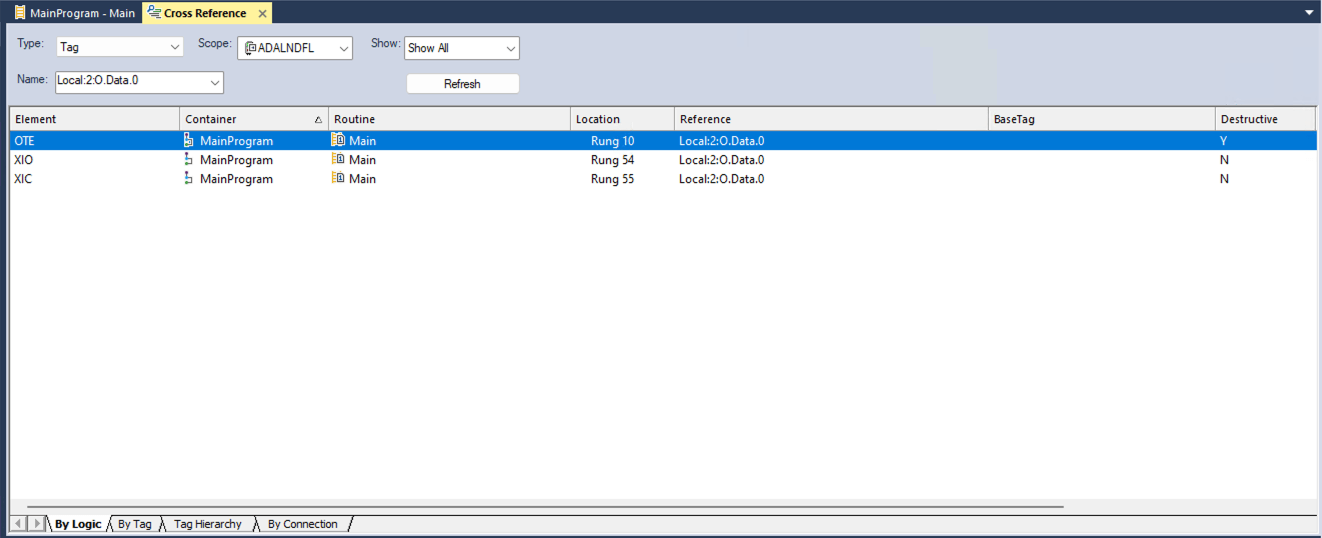
Access Cross-Reference: Right-click a tag (e.g., Motor_Start) in the Controller Tags window or logic rung, then select “Go To Cross Reference For “Motor_Start” ” from the drop-down menu. In the image above, choosing a PLC module input or output tag associated with the hardware having issues is a very easy place to start (if your tag name is unknown).
Analyze Results: The cross-reference window lists all instances of the tag, including program, rung, and instruction details (e.g., XIC, OTE). A good place to start is finding the “Y” under the “Destructive” column. This will take you to a rung that writes or modifies the tag value. That information is typically more important at the start of your troubleshooting than the other places that are using this tag value as an evaluation condition. Double-click on the row of interest.
Identify Errors: Look for issues blocking the tag from changing values. If this tag seems to be programmed correctly, move to the next suspected tag(s) associated with this rung location that may be blocking the successful execution of the logic.
Fix and Verify: Correct the issue (e.g., update tag alias or logic), then observe that the logic is now executing correctly, watching for new edge cases created by your logic changes.
Use filters in the cross-reference window to narrow down results by program or tag type.
Cross-reference I/O modules to check physical connections.
Save reports for documentation via the “Export” option (if needed).
Using cross-reference in Studio 5000 streamlines PLC error fixes, saving time. Ready to troubleshoot? Explore more helpful troubleshooting tips at Studio 5000 Logix Designer Online Help here. Let Automation Ready Panels design and program your next PLC control system today! Contact Us